Set up Volumo
Install the app, create your first deal and add the Volumo block to your product page.
1. Install the app
- Open Volumo on the Shopify App Store and click Install.
- Approve the permissions. Volumo opens inside your Shopify admin.
2. Create your first deal
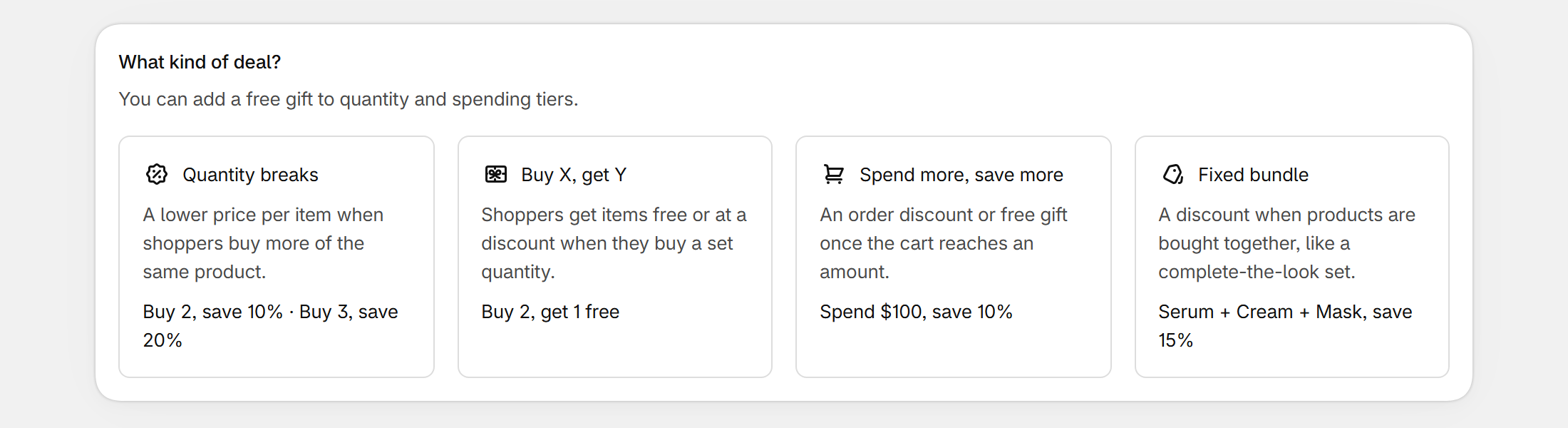
- Click Create deal and choose a deal type. Quantity breaks is the easiest start. The type can't be changed after the deal is created.
- Give the deal a name. Shoppers don't see it.
- Keep the suggested tiers (Buy 1, Buy 2 save 10%, Buy 3 save 20%) or change them.
- Under Applies to, choose all products, specific products or specific collections.
- Set Status to Active and click Save.
3. Add the block to your product page
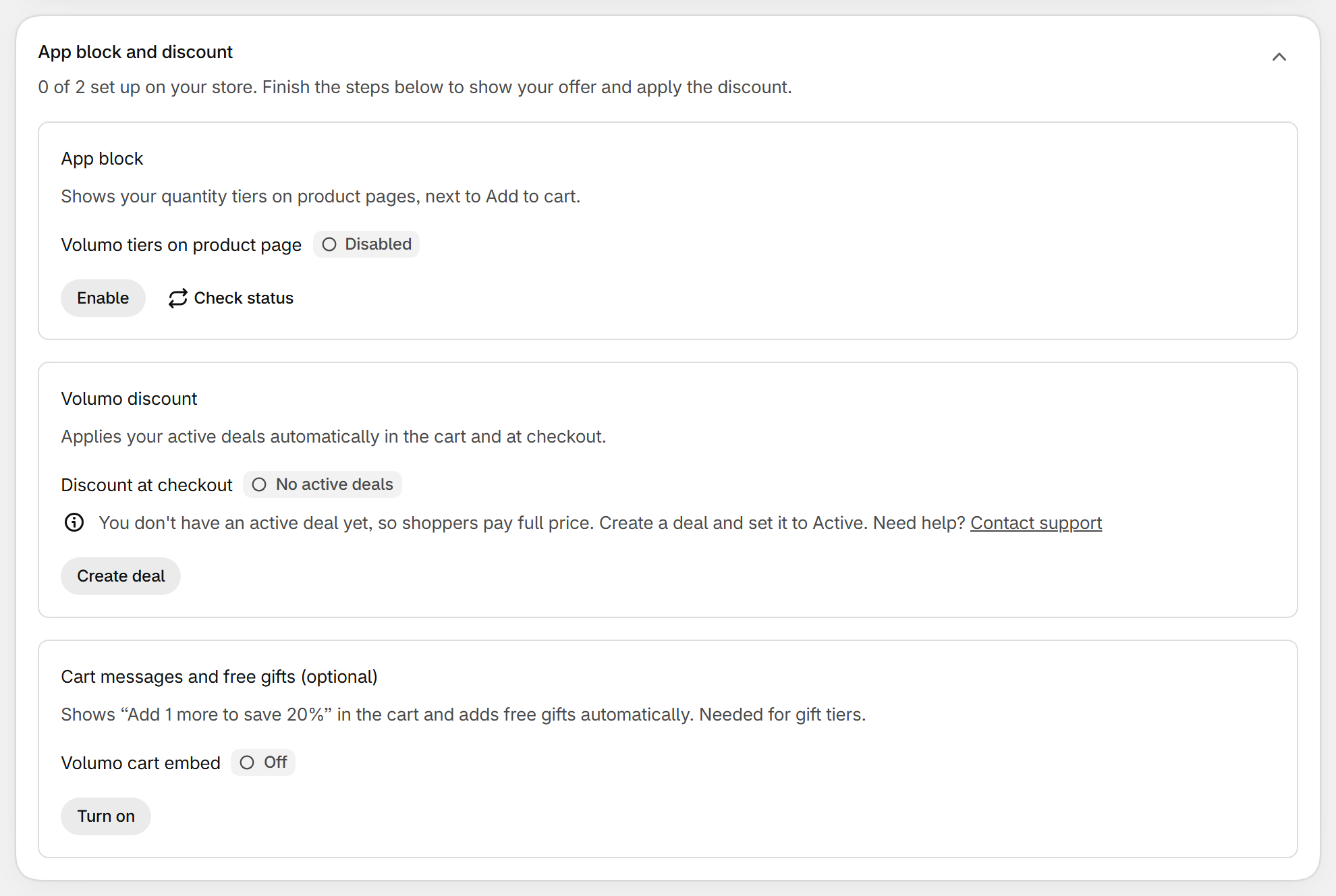
- On Volumo's home page, under App block and discount, click Enable next to App block (or Add block in a deal). The Shopify theme editor opens in a new tab on a product page.
- In the left sidebar, open the product section (usually called “Product information” or “Default product”). If the Volumo offers block is already listed there, skip to step 5.
- Click Add block, then choose Volumo offers under the Apps tab.
- Drag the block to where you want the offers, usually just above the Buy buttons or Add to cart. Use the drag handle (⋮⋮) next to the block name.
- Click Save at the top right of the theme editor. The block does nothing until you save.
- Go back to the Volumo tab and click Check status.
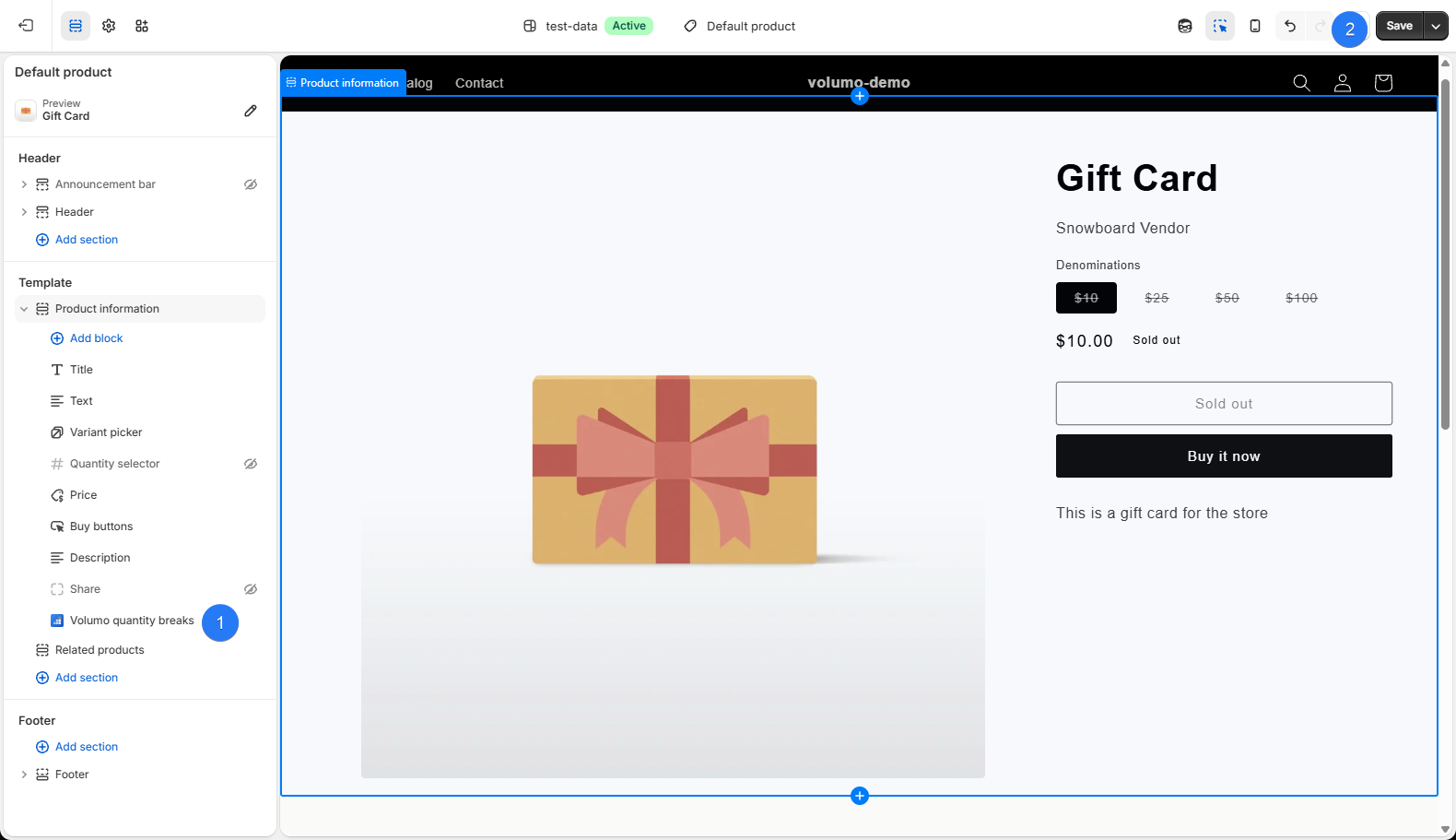
If the button doesn't work
- In your Shopify admin, go to Online Store > Themes.
- On your published theme, click Customize.
- At the top center, open the page picker and choose Products > Default product (or the product template you use).
- In the sidebar, under the product section, click Add block > Apps > Volumo offers.
- Move the block above the Add to cart button, then click Save.
- The block needs an Online Store 2.0 theme (Dawn and the other free Shopify themes are fine). If you don't see an Apps tab when you click Add block, your theme is not 2.0: email us.
- If you use several product templates, add the block to each template where the offers should show.
4. Next steps
- Want free gifts or “Add 1 more to…” messages in the cart? Turn on the cart embed: see Cart messages and gifts.
- Change the look of the offers: see Appearance.
Still stuck? Email [email protected].